 lottieditor
Lottieditor guides
Make a button animation with Cursor and MCP
Configure Cursor for Lottieditor, pair the editor, and create a small arrow animation for a real interface.
Before you start
Use a current Cursor installation with access to its assistant features, an internet connection, and a browser tab with Lottieditor open. You provide your own assistant account. Browser-only projects can pair without signing in. Exports through MCP require sign-in, including project backups. Animation export permissions also apply.
1. Add a project configuration
Create .cursor/mcp.json in your application project and merge the JSON below with existing servers. For a personal configuration shared across projects, Cursor also supports ~/.cursor/mcp.json. Keep temporary pairing credentials out of either file.
{
  "mcpServers": {
    "lottieditor": {
      "url": "https://lottieditor.com/api/mcp"
    }
  }
}2. Enable the server
Open Cursor Settings and find the MCP server controls. Confirm that lottieditor is enabled and its tools load. Restart Cursor if a newly added configuration does not appear. Use Agent mode for tool calls.
3. Connect the browser project
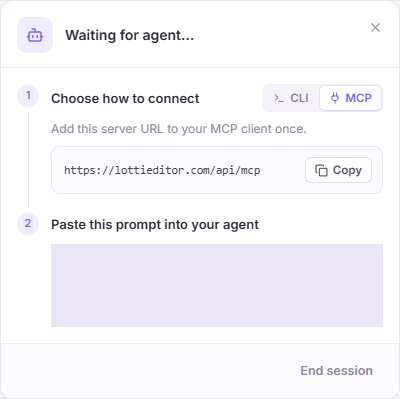
Open a new Lottieditor project and choose Connect agent, then MCP. Paste its pairing prompt into Cursor’s Agent chat. Check the tool arguments when Cursor asks for approval. The endpoint itself does not require OAuth; project access comes from the temporary code.
4. Build an arrow for your button
Use the example prompt below. Ask for matching first and last positions, a stationary backplate, and a moving arrow group. Keep the text label and clickable button in your application code.
5. Use the asset in your application
Compare the export in the real component, then follow the React or HTML guide. Use a PNG fallback for reduced motion. The MCP edits the open animation project; integrating files into your application is a separate action performed by Cursor.
Try a complete animation
Create a 600 by 600, 1.5-second looping animation. Add a pale rounded button backplate 380 by 160 pixels at the canvas center. Draw a purple right arrow as three rounded rectangles and group them. Move only the arrow group 24 pixels right at 0.75 seconds and back by 1.5 seconds. Keep the button still. Match first and last poses exactly, leave room around the arrow, and save the editable project.Open the editable reference and walkthrough
If the connection fails
- Use the exact HTTPS endpoint ending in /api/mcp, not the /mcp guide URL.
- If tools load but edits fail, generate a fresh pairing code in the current project.
- Keep the editor open. Sleep, tab reloads, or a lost heartbeat can end access.
- Read the latest revision after manual edits or Undo. Avoid sending multiple writes at once.
- A successful connection does not remove export limits. Check the error and your workspace plan.
References and next steps
Setup reviewed September 8, 2026. Official Cursor MCP documentation describes client configuration. Lottieditor’s MCP reference covers pairing, tools, and file limits.